
Color Contrast Mistakes That Make Websites Hard to Read
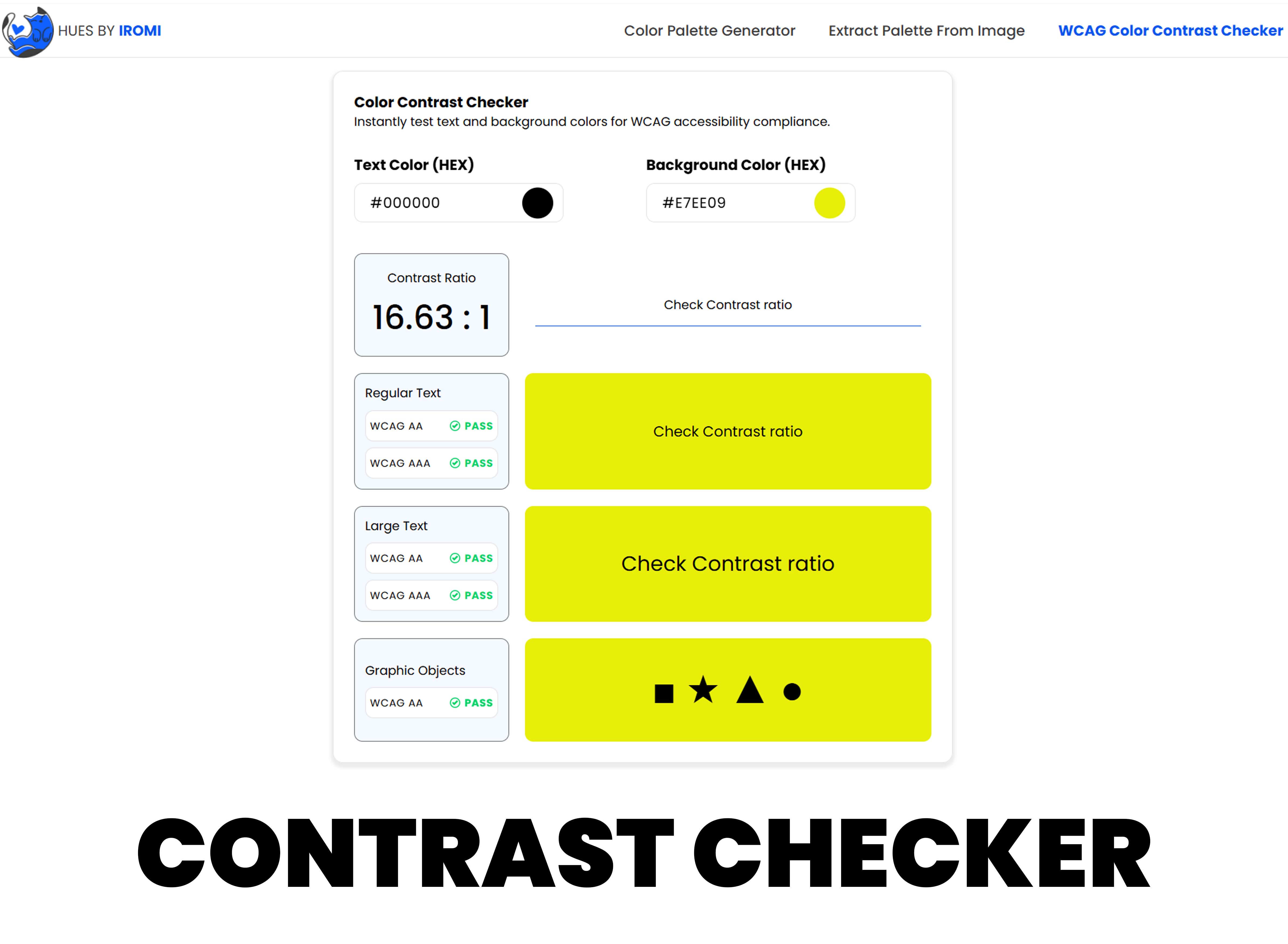
Color contrast problems are easy to miss during design because mockups are usually viewed on bright screens in ideal conditions. Real users may read your site on older phones, low brightness, sunlight, dark mode, or with visual impairments. A design that looks subtle in a mockup can become difficult or impossible to read in normal use.
Mistake 1: Light Gray Text on White
Light gray text is one of the most common readability problems. It is often used to make layouts feel minimal, but it reduces clarity for body copy, labels, helper text, and descriptions. If information matters, it needs enough contrast to be read comfortably.
Mistake 2: Testing Only Body Text
Many teams test paragraphs but forget smaller interface text. Placeholder text, form hints, badges, chart labels, breadcrumbs, and disabled states often have weaker contrast. These elements may be small, but they still affect whether users understand the page.
- Form labels and error messages
- Navigation links and active states
- Button text on hover and pressed states
- Cards with tinted backgrounds
- Small metadata such as dates, tags, and captions
Mistake 3: Putting Text Directly on Images
Images contain many tones, so a text color that works in one area may fail in another. If text must sit over an image, use a solid overlay, gradient overlay, or dedicated text area. The goal is to make the background predictable enough for the text to remain readable.
Mistake 4: Ignoring Focus States
Keyboard users rely on visible focus indicators to know where they are on the page. A focus ring that is too pale or too close to the background color can make navigation frustrating. Focus colors should be tested against light and dark surfaces.
A Better Contrast Workflow
Use a contrast checker before finalizing a palette, then test again once colors are applied to real components. Start with the combinations users see most often: body text on page background, button text on button background, link color on page background, and form text on input backgrounds.
Where to Test First
If time is limited, start with high-traffic and high-action areas. Test the homepage hero, navigation, contact form, pricing or feature cards, and any call-to-action sections. These areas shape the first impression and often contain the text users must read before taking action.
For content-heavy sites, also test article body text, captions, tag labels, and related-post links. Small supporting text is often where contrast problems hide.
Good contrast does not make a design less beautiful. It makes the design easier to trust, easier to scan, and easier to use for more people.